

For most, the command line serves as a mere instrument. For me, it’s a passion, if not quite an obsession. I have been a fairly consistent command line junkie for well over 20 years. However, I’ve been feeling a bit rough around the edges lately. I’m more commonly using tools like VSCode and Azure DevOps these days, and the command-line hasn’t been getting as much attention from me as I’d like. A curious question popped into mind one fine Saturday morning, so I took off on a journey through the command line of my Kubuntu desktop. The goal I had in mind was simple and clear: to discover if remote IP addresses were listening on specific ports. This exploration was not just about achieving the objective; it was also about understanding the intricacies of the commands used. This article will lead you on a bit of a deep dive into network connections, moving beyond just the technical aspects to explore the artistry of command line proficiency.
Why This Matters to Me:
Each connection your system makes or accepts can be a routine data transfer, or a potential vulnerability. By examining these connections, we’re not merely satisfying our curiosity; we’re taking a proactive step towards better system management and security.
Beyond the obvious security and management benefits of understanding active connections however, there’s a personal thrill in crafting precise commands. It’s about honing skills, challenging oneself, and achieving clarity in a sea of data.
1. Starting with netstat:
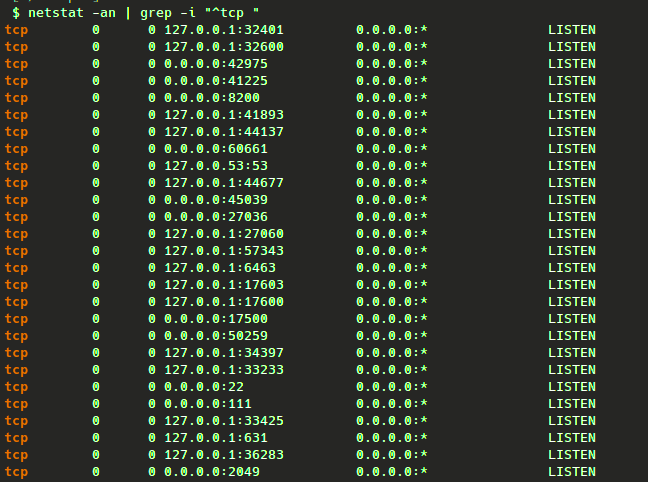
Firstly, we need some data to work with. Under Linux, there is generally no better source of lively IP data than the output of the trusty netstat. Therefore, our first step is to use the netstat command with appropriate arguments to provide a snapshot of all active network connections. To focus on TCPv4 sessions, we use the grep command:
$ netstat -an | grep -i "^tcp "
Notice the space after “tcp” in the grep command. This space is crucial. Without it, the command would also capture TCPv6 sessions, adding unnecessary noise to the output. By including the space, we ensure that only TCPv4 sessions are considered.
Example Output:
tcp        0      0 0.0.0.0:22              0.0.0.0:*               LISTEN
tcp        0      0 127.0.0.1:631           0.0.0.0:*               LISTEN
2. Extracting Unique Source IPs:
At first I was curious about outbound connections from source (local) IPs. Therefore, I extracted a list of unique source IPs by referencing the 4th column of the netstat command output. This is saved to a file named remote-ips.txt, all in one command line as follows:
$ netstat -an | grep -i "^tcp " | awk '{print $4}' | sort | cut -f1 -d ':' | uniq > remote-ips.txt
Using the pipe (|) operator of the Bash shell, I call upon several tools to help filter and manipulate the netstat command output, including awk, sort, cut, and uniq.
The awk '{print $4}' command pulls data from the fourth column of the netstat output, representing our source IPs. The cut command then isolates the IP addresses, returning just the first field, and using the “:” character as a delimiter. This allows us to capture just the source IP address from the returned table of information so that the only data stored in the remote-ips.txt file are the source IP addresses, (excluding port information).
Example Output:
$ cat remote-ips.txt
0.0.0.0
100.64.100.6
127.0.0.1
3. Shifting Focus to Destination IPs:
After I was satisfied with the output, I decided to pivot to the destination (or remote) IPs. I adjusted the awk command to focus on the destination IPs by referencing the 5th column of the netstat output:
$ netstat -an | grep -i "^tcp " | awk '{print $5}' | sort | cut -f1 -d ':' | uniq > remote-ips.txt
Example Output:
$ cat remote-ips.txt
0.0.0.0
104.18.39.102
127.0.0.1
4. Probing Ports with Netcat:
Since I now had a list of IP addresses I was curious about, all I needed now was to craft a quick and dirty Bash script to check each IP’s port status. For this, I’ll be leveraging netcat.
The nc command, often referred to as “netcat”, is a versatile networking tool, aptly termed the “Swiss Army knife” of networking. In this article, we harness its power to probe specific IP addresses and ports, checking for open connections. We utilize the -v flag for detailed output, -z to scan without sending data, and -w to set a timeout, ensuring efficient scans. Mastering netcat is pivotal for anyone keen on deepening their command-line networking expertise.
Here’s my quick and dirty script to get this job done:
addresses=$(cat remote-ips.txt)
nc_cmd='nc -vz';

for i in `echo -e "$addresses"`; do
        ip=$i
        port='80'
        $nc_cmd -w 2 $ip $port;
done
I then save this script as check-connections.sh in the same directory as remote-ips.txt.
The above is a simple script which reads the content of the remote-ips.txt file into a variable called $addresses. Other variables used are $nc_cmd, to hold the netcat command I would be using to issue the port connectivity test, along with the $ip and $port information.
Note: In this case, the -w 2 argument to the nc command sets a 2-second timeout. This makes the script more efficient, ensuring prompt feedback, and not allowing netcat to get hung-up too long on potential timeouts with unresponsive remote hosts.
Example Output:
$ bash check-connections.sh
nc: connect to 0.0.0.0 port 80 (tcp) failed: Connection refused
Connection to 104.18.39.102 80 port [tcp/http] succeeded!
nc: connect to 127.0.0.1 port 80 (tcp) failed: Connection refused
5. Conclusion:

This exploration isn’t just about understanding network connections. It’s a testament to the power of the command line, the intricacies of Linux, and the joy of hands-on learning. By delving into these connections, I’m not just learning more about the security of my system; I’m celebrating the art of command line mastery.
About the Author:
Bobby Lopez is a DevOps, Agile, and Cloud Consultant based in Toronto, Ontario. With a penchant for diving deep into technical challenges, he shares his insights on his personal blog, The DevOps Joint.


Leave a Reply